
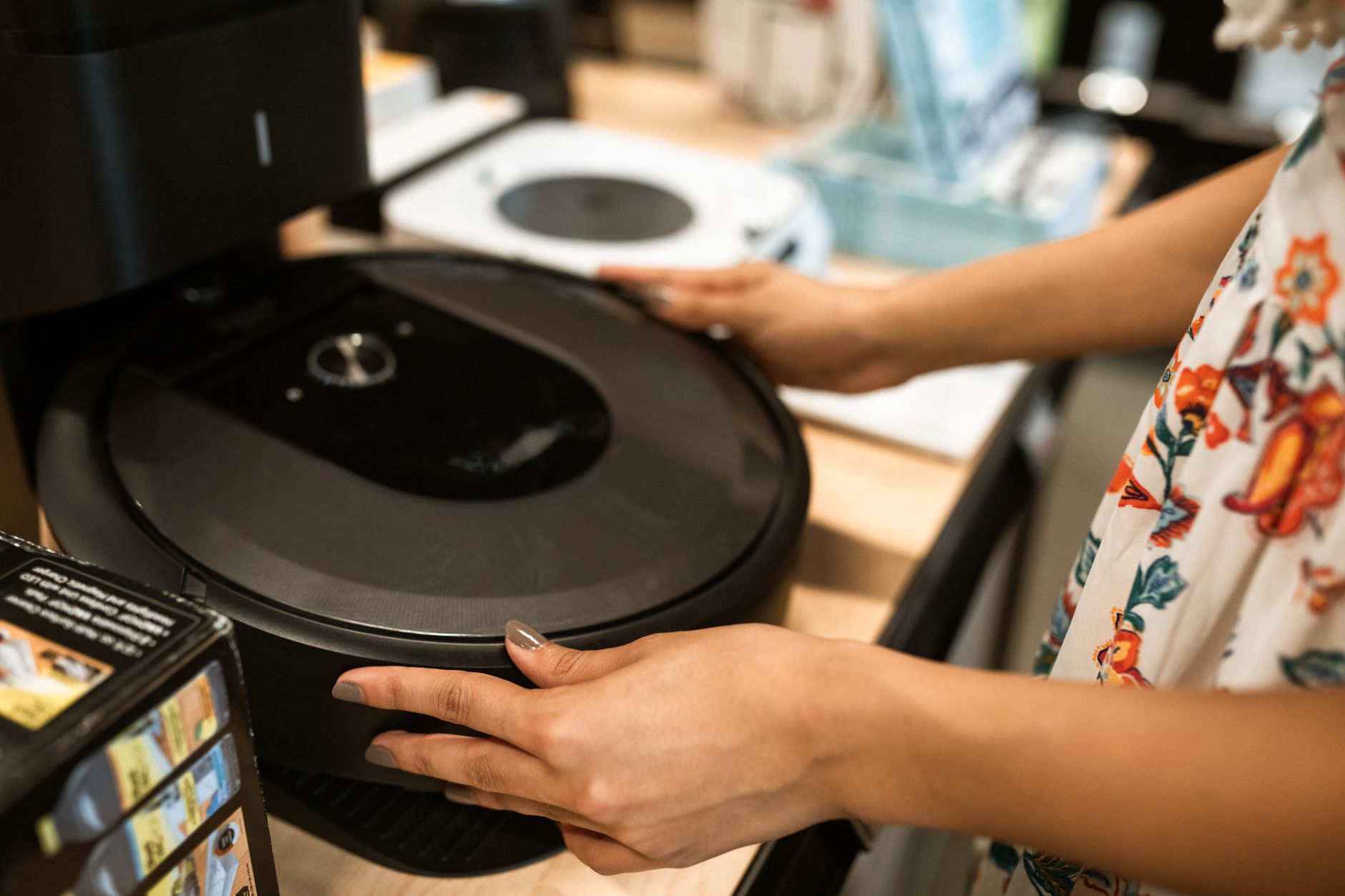

Your robot vacuum is not returning to dock usually because it cannot find the dock, cannot reach it, or cannot charge once it arrives. Start by clearing the path, checking dock power and placement, cleaning sensors and charging contacts, then resetting the robot or app. If it still fails, work through the troubleshooting checklist below. Exact steps vary by model, so use your manual for model-specific resets and settings.
Key takeaways
- Common docking problems can involve access, dock setup, dirty sensors or contacts, or app settings.
- Fix the easiest items first: clear the floor, confirm dock power, and clean contacts.
- If the robot ignores the dock only in one room or spot, the issue may be placement or a sensor obstruction.
- Use a soft dry cloth for sensors and contacts unless your manual says otherwise.
- Contact manufacturer support if the robot still fails after a reset and basic maintenance.
Table of contents
Direct outcome
By the end of this guide, you should be able to identify why your robot vacuum is not returning to dock and either restore normal docking or know when to contact support. The goal is to get the robot to find, reach, and charge on its dock consistently.
Prerequisites
- Your robot vacuum and charging dock.
- Access to the robot vacuum’s app, if it has one.
- The owner’s manual or manufacturer support page for model-specific reset steps.
- A soft, dry cloth or the cleaning tool recommended by the manufacturer.
- A clear floor area around the dock.
- A few minutes to test one change at a time.
Step-by-step fixes
Work through these steps in order. After each change, send the robot vacuum back to the dock or start a short cleaning cycle and watch what happens.
- Clear the route to the dock. Move shoes, cables, pet bowls, toys, rugs, and other objects that could block the robot’s path. Make sure the dock is easy to reach from the room’s main walking area.
- Check that the dock has power. Confirm the charging dock is plugged into a working outlet and that the power adapter or cable is fully connected. If the dock has a light, check whether it is on or blinking according to your manual.
- Verify dock placement. Place the dock on a level, hard surface if your model allows it. Keep it away from direct sunlight, reflective surfaces, and tight corners that may confuse the robot’s sensors. Leave the clearance around the dock that your manual recommends.
- Clean the charging contacts. Wipe the metal contacts on the robot and the dock with a soft, dry cloth. Dirt, dust, or debris on the contacts can prevent charging even when the robot reaches the dock.
- Clean the robot’s sensors. Use a soft, dry cloth or the manufacturer-recommended tool to clean the bumper sensors, cliff sensors, wall sensors, and camera or lidar area if your model has one. Do not spray liquid directly on the robot.
- Remove hair and debris from the wheels and brushes. Tangled hair or debris can affect movement and prevent the robot from lining up with the dock. Follow your manual for safe removal.
- Check the app and docking settings. Open the robot vacuum’s app and confirm that return to dock, charge, or similar settings are enabled. If your model supports no-go zones or room mapping, make sure the dock area is not blocked in the map.
- Restart the robot and dock. Turn the robot off and back on using the power switch or app, if available. Unplug the dock for a short period, then plug it back in. Use only the reset method described in your manual.
- Manually place the robot on the dock. If the robot charges when placed by hand, the charging path may be fine but the robot may be having trouble finding or approaching the dock. If it does not charge, inspect the contacts and dock power again.
- Test in a simple setup. Move the dock to an open area with a clear path and run a short cleaning cycle. If docking works there, the original location likely needs adjustment.
Safety notes
- Unplug the dock before cleaning around its power port or cable.
- Do not use water, cleaners, or wet cloths on electrical contacts unless the manufacturer explicitly allows it.
- Do not open the robot, dock, or battery unless your manual gives step-by-step instructions and you are comfortable doing so.
- Keep cables, cords, and small objects away from the robot’s path to reduce tripping and damage risks.
- If you see swelling, leaking, unusual heat, smoke, or a burning smell, stop using the robot and contact the manufacturer or a qualified technician.
Troubleshooting
Use this table to narrow down common reasons a robot vacuum is not returning to dock. Exact behavior varies by brand and model.
| What you notice | Likely area to check | What to try |
|---|---|---|
| Robot stops near the dock but does not connect | Charging contacts, dock alignment, or sensor dirt | Clean contacts and sensors, confirm dock placement, and manually test charging. |
| Robot wanders past the dock | Dock location, map, or sensor obstruction | Move the dock to a more open spot, clear the map area, and clean sensors. |
| Robot says cannot find dock in the app | App settings, map, or dock power | Check the app for dock settings, verify dock power, and restart the robot and dock. |
| Robot returns only sometimes | Obstacles, floor changes, or docking signal | Remove clutter, test on a simple hard floor, and review the manual for dock clearance. |
| Robot does not charge after docking | Contacts, power supply, or battery | Clean contacts, test the outlet and cable, and contact support if the issue continues. |
Maintenance that prevents docking problems
- Clean charging contacts and sensors on a regular schedule based on your manual and how often you run the robot.
- Keep the dock area clear of clutter, cables, and items that can move into the robot’s path.
- Empty and maintain the dustbin, brushes, and filters as recommended by the manufacturer.
- Check the wheels and brushes for hair, string, or debris.
- Update the robot’s firmware or app if your model supports updates and the manufacturer recommends them.
- Review the map or no-go zones after moving furniture or the dock.
FAQ
Why is my robot vacuum not returning to dock?
Common reasons can include a blocked path, dock power or placement issues, dirty sensors or charging contacts, app or map settings, or a model-specific error. Check simple physical causes first, then follow your manual for resets.
Should I reset my robot vacuum if it will not dock?
A reset may help if the robot is stuck in an error state, but the exact reset method varies by model. Use the reset steps in your owner’s manual or app, and try basic cleaning and dock checks first.
How do I clean the charging contacts?
Unplug the dock first. Then wipe the contacts on the robot and dock with a soft, dry cloth or the tool recommended by the manufacturer. Avoid water or liquid cleaners unless the manual says they are safe.
Can a dirty sensor stop the robot from docking?
Yes. Dust, hair, and debris can interfere with sensors that help the robot navigate and align with the dock. Clean the sensors gently and only with approved methods from your manual.
What if the robot only fails to dock in one location?
The dock location may be the issue. Try an open, level area with clear space around the dock and away from reflective surfaces or tight corners. If it works there, adjust the original setup.
When should I contact the manufacturer?
Contact support if the robot still will not return to dock after you have cleared the path, checked dock power and placement, cleaned contacts and sensors, and tried the manual’s reset steps. Also contact support for battery, heat, swelling, or electrical concerns.