
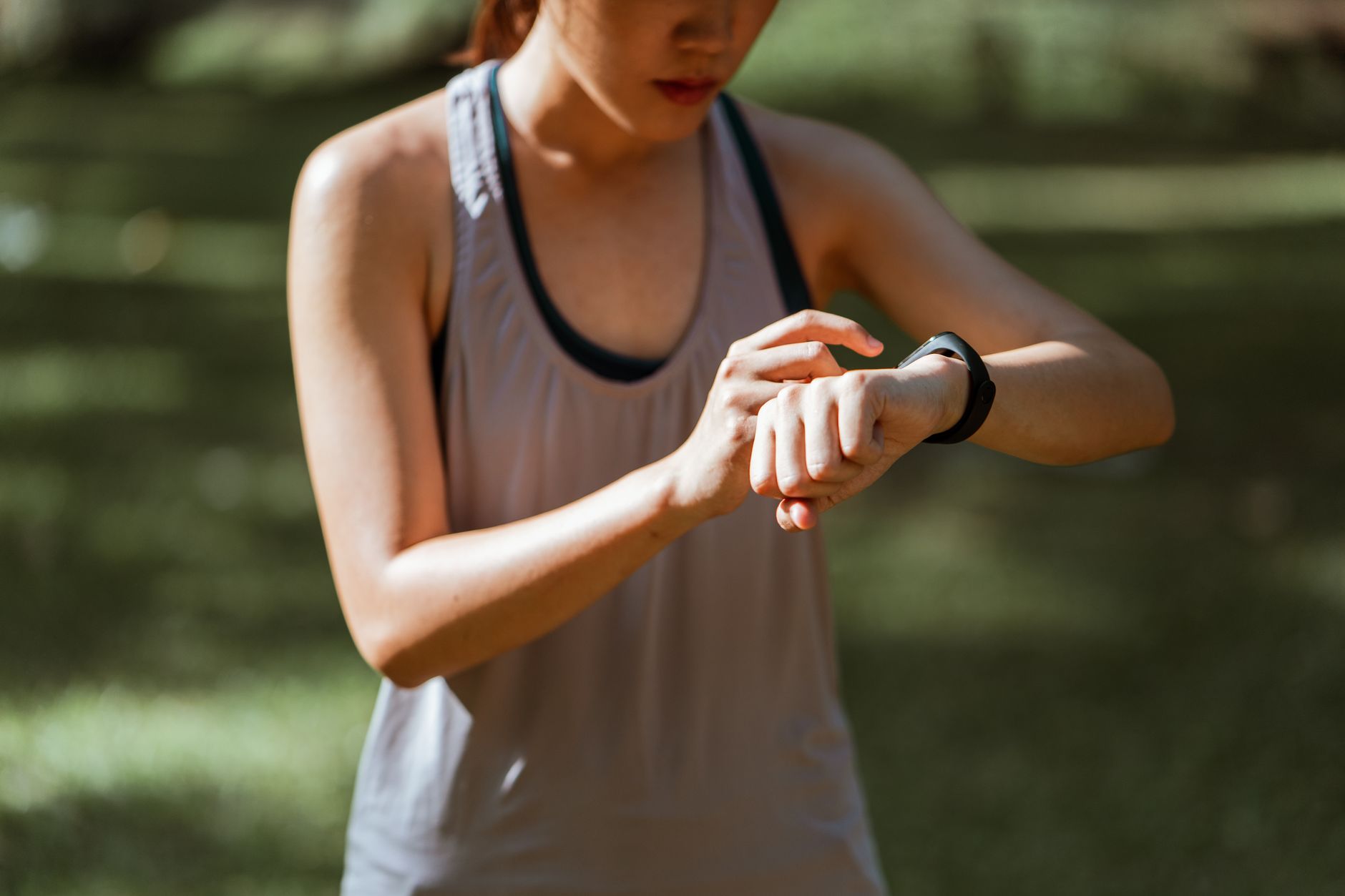

To use a smartwatch, charge it, install the companion app, pair it with your phone over Bluetooth, grant only the permissions you need, set notifications, learn the buttons and touch gestures, then customize health, safety, and battery settings. After setup, use it daily for time, alerts, activity tracking, timers, contactless payments, and quick replies where supported. Menus vary by brand, but the basic flow is similar.
Key Takeaways
- Start with a full charge and the official companion app.
- Pair over Bluetooth, then accept only the permissions you understand and need.
- Learn the main button, crown or bezel, touch gestures, and quick settings first.
- Trim notifications early to reduce distraction and extend battery life.
- Set safety features such as emergency contacts, lock screen, and fall detection if available.
- Troubleshoot common issues by restarting, updating, re-pairing, and checking permissions.
- Clean the watch and band regularly, and install updates when available.
Table of Contents
- What You’ll Be Able to Do
- Prerequisites
- How to Use a Smartwatch: Step-by-Step
- Safety and Privacy
- Troubleshooting
- Maintenance and Care
- FAQ
What You’ll Be Able to Do
By the end, you should be able to set up a new smartwatch, move through its menus confidently, receive the alerts you want, track basic activity, use emergency features responsibly, and fix common pairing, notification, sync, and charging problems.
Prerequisites for Using a Smartwatch
- A smartwatch with its charger or charging cable.
- A compatible phone, if your watch requires one.
- The manufacturer’s companion app from your phone’s official app store.
- An account for the watch brand or app, if required during setup.
- Bluetooth enabled on your phone, and a stable internet connection for app setup and updates.
- Accurate profile details if you plan to use fitness, sleep, or health tracking.
- A comfortable fit: snug enough for sensors, loose enough to avoid pressure.
Before you begin, decide what you want from the watch: notifications, fitness tracking, sleep insights, contactless payments, safety alerts, or simple timekeeping. That goal helps you choose which permissions and features to enable.
How to Use a Smartwatch: Step-by-Step
Follow these steps in order for a typical smartwatch. Exact labels and menu names vary by brand and operating system.
- Charge the smartwatch. Use the charger that came with it or an approved replacement. Let it reach a usable charge before setup. If it does not turn on, leave it charging for a while and try again.
- Power on and choose basic settings. Press and hold the main button or follow the on-screen prompt. Select language, region, time format, and any accessibility settings you need.
- Install the companion app. Download the official app for your watch brand. Open it and sign in or create an account if the app requires one.
- Pair the watch with your phone. Turn on phone Bluetooth, keep the watch close to the phone, open the app, and choose the option to add or pair a device. Confirm the pairing code on both screens if prompted. If pairing fails, toggle Bluetooth, restart both devices, and try again.
- Review permissions. Allow notifications, contacts, calendar, phone, location, and health permissions only when they make sense for the features you want. You can change them later in phone settings or the companion app.
- Complete your profile. Enter height, weight, age, sex, and activity goals if the app uses them for calorie, workout, or sleep estimates. Accurate details improve personalization, but you can skip optional fields.
- Learn the core controls. Practice tapping, swiping, scrolling, and pressing the main button or rotating the crown or bezel. Find the home screen, quick settings, back gesture, and app list. Lock the screen with a PIN or pattern if the watch stores payments or sensitive health data.
- Set notifications and focus modes. Choose which apps can send alerts to the watch. Turn on Do Not Disturb, theater mode, bedtime mode, or silent mode when you do not want vibrations. Fewer alerts usually mean less distraction and better battery life.
- Set up health and activity basics. Wear the watch snugly on top of your wrist. Enable heart rate, steps, sleep, and workout tracking if available. Start a short workout manually so you learn where to pause, resume, and end it. Treat smartwatch health data as general wellness information, not a medical diagnosis.
- Configure safety and convenience features. If supported, add emergency contacts, medical ID, fall detection, emergency SOS, and find-my-watch. Set up contactless payments or transit cards only through the official app. Test emergency features carefully and learn how to cancel an accidental alert.
- Update, sync, and personalize. Check for software updates in the watch settings or companion app. Sync the watch with your phone, then adjust watch faces, brightness, vibration strength, raise-to-wake, always-on display, and battery saver to match your routine.
Daily Controls to Practice
| Goal | What to try |
|---|---|
| See notifications | Swipe from the watch face or open the notification list, depending on your model. |
| Open quick settings | Swipe from the top or bottom edge, or press the main button, depending on your model. |
| Start a workout | Open the workout or exercise app, choose an activity, then tap start. |
| Reply to a message | Open the notification, then use quick replies, dictation, emoji, or typing if supported. |
| Silence alerts | Use Do Not Disturb, theater mode, or bedtime mode in quick settings. |
| Find your phone | Use the find-my-phone feature on the watch if your model supports it. |
Safety and Privacy When Using a Smartwatch
Smartwatches are useful, but a few habits keep them safer and less distracting.
- Battery and charging: Use the approved charger. Do not charge a watch that is swollen, wet in a way the manufacturer does not allow, or unusually hot. Avoid covering the watch while charging, and unplug it when charging is complete if the manufacturer recommends that.
- Driving and traffic: Do not scroll, read, or reply on a smartwatch while driving, cycling, or crossing a street. Set up focus or driving modes to reduce alerts when you need attention on the road.
- Privacy: Review app permissions regularly. Use a screen lock if the watch stores payment cards, health data, or personal messages. Disable message previews on the lock screen if others can see your wrist.
- Health limits: A smartwatch can estimate activity, heart rate, sleep, and workouts, but it is not a substitute for medical advice or emergency services. If you feel unwell, contact a qualified professional.
- Emergency features: Learn how emergency SOS, fall detection, and medical ID work on your model. Know how to cancel an accidental call or alert. Keep emergency contacts current.
- Water exposure: Follow the manufacturer’s water-resistance guidance. Avoid hot water, soap, shampoo, chlorine, and steam unless the watch is specifically rated for those exposures.
- Comfort and skin care: Keep the band clean and dry. If you notice irritation, loosen the fit, clean the watch and band, and take a break from wearing it.
Troubleshooting Common Smartwatch Problems
Most smartwatch problems come down to Bluetooth, permissions, battery settings, or software. Try these fixes in order.
| Problem | First fixes |
|---|---|
| Watch will not pair | Restart the watch and phone. Toggle Bluetooth off and on. Forget the watch in phone Bluetooth settings, then pair again through the companion app. Keep both devices close. |
| Notifications do not arrive | Check notification permissions for the companion app. Confirm app-specific alerts are enabled. Check Do Not Disturb, theater mode, or bedtime mode on the watch and phone. |
| Battery drains quickly | Lower brightness, shorten screen timeout, disable always-on display, reduce GPS workouts, and mute low-value notifications. Check the companion app for battery usage details. |
| Data will not sync | Open the companion app and sync manually. Enable background refresh for the app. Reconnect Bluetooth. Restart both devices. |
| Heart rate or step data seems off | Clean the sensor area, adjust the band fit, and update the watch software. For health concerns, use a medical device or consult a professional. |
| Touchscreen or buttons do not respond | Clean and dry the screen and your fingers. Restart the watch. Remove incompatible screen protectors if the touch response changed after applying one. |
| GPS or workout tracking is inaccurate | Give location permission to the app. Wait for a GPS signal before starting. Keep your phone nearby if the watch relies on phone GPS. Update the watch software. |
| Watch will not charge | Check charger alignment and clean the charging contacts. Try another approved cable or adapter. Inspect for damage. If the battery is swollen or hot, stop using it and contact support. |
If the problem continues, check the manufacturer’s support pages, reset the watch, or contact support. A factory reset erases data, so back up or sync first if possible.
Smartwatch Maintenance and Care
- Clean regularly. Wipe the watch and band with a soft cloth. For tougher dirt, follow the manufacturer’s cleaning instructions and use only approved cleaners. Dry the watch thoroughly, especially around sensors, buttons, and charging contacts.
- Charge smartly. Use the approved charger, avoid extreme temperatures, and do not let the watch sit at empty or full for long periods if the manufacturer advises against it. Remove the watch while charging if it feels warm.
- Update software. Install watch and companion app updates when available. Updates can fix pairing, notification, battery, and security issues.
- Manage storage and apps. Remove apps, music, or watch faces you no longer use if storage is limited. Clear old workout or message data through the companion app when needed.
- Review privacy and permissions. Check app permissions every few months. Revoke access you no longer need, especially location, microphone, contacts, and health data.
- Back up and sync. Use the companion app’s backup or cloud sync feature if available. Sync before resetting, switching phones, or sending the watch for repair.
- Store safely. If you will not use the watch for a while, charge it partially, power it off, and store it in a cool, dry place according to the manufacturer’s instructions.
Frequently Asked Questions
Do I need a phone to use a smartwatch?
Many smartwatches need a phone for setup and full app support, but some can handle time, workouts, music, and payments independently after setup. Check your model’s manual for what works without a phone.
How do I answer calls on a smartwatch?
If your watch supports calls and is paired with your phone, tap answer on the watch and use the watch speaker, microphone, or connected Bluetooth earbuds. A cellular watch may handle calls without the phone if it has an active service plan.
Can I use a smartwatch without notifications?
Yes. Turn off app notifications in the companion app or phone settings, or use Do Not Disturb. You can still use the time, alarms, timers, fitness tracking, and other offline features.
How often should I charge a smartwatch?
Charging frequency depends on the model, screen settings, health tracking, and workout use. Charge when the battery is low, follow the manufacturer’s guidance, and use battery saver if you need more time.
Is it safe to wear a smartwatch while sleeping?
Many smartwatches are designed for sleep tracking. Keep the band clean and comfortably snug, disable alerts that would wake you, and remove the watch if you notice skin irritation.
How do I reset a smartwatch?
Open the watch settings or companion app and look for factory reset or unpair. A reset erases data on the watch, so sync or back up first if your app supports it.
Why does my smartwatch show the wrong time?
Sync the watch with your phone, check that automatic date and time are enabled on the phone, and reconnect the companion app over Bluetooth. If you traveled, confirm the watch’s time zone setting.
Can I use a smartwatch in the shower?
Only if the manufacturer says the watch is rated for that kind of water exposure. Hot water, soap, shampoo, and steam can damage some watches even when they handle rain or hand washing.