
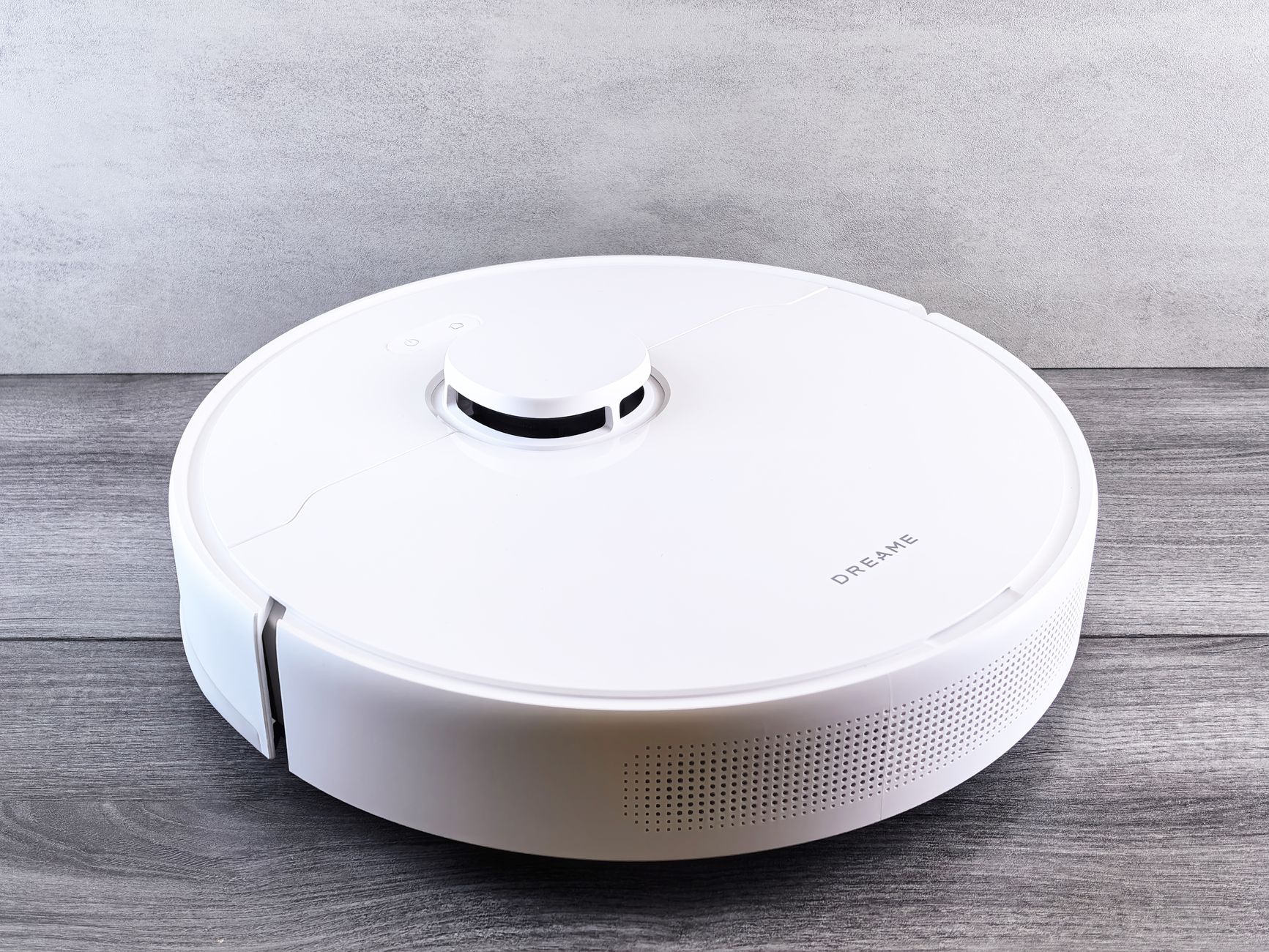

To set up a robot vacuum, place its charging dock on a hard, level wall with clear space around it, plug it in, charge the vacuum, install any required app, connect the vacuum to your Wi-Fi, then run a quick mapping or first clean. Exact steps vary by model, so follow the manufacturer’s instructions for your specific vacuum.
Key takeaways:
- Place the dock where the robot can easily reach and return to it.
- Charge the vacuum as directed before the first full run.
- Use the manufacturer’s app and Wi-Fi settings if your model requires them.
- Clear the floor and set boundaries before the first cleaning run.
- Plan for routine bin emptying, brush cleaning, and filter care.
What a Successful Setup Should Accomplish
After setup, your robot vacuum should charge at its dock, connect to the app if you use one, start and stop on command, and complete a first cleaning run without repeatedly getting stuck. You should also know where its brushes, filters, and dust bin are so routine care is easy.
- The dock is powered and in a position the robot can reach and return to.
- The vacuum is charged enough to complete a test run.
- The app and Wi-Fi connection are working, if your model uses them.
- No-go zones or boundaries are set for stairs, cords, pet bowls, or fragile items.
- You know how to empty the bin and clean the main brush.
Prerequisites Before You Start
Gather these items and clear a little floor space before you begin.
- Robot vacuum, charging dock, and power adapter.
- Manufacturer’s quick-start guide or app setup instructions.
- Smartphone or tablet for app pairing, if required.
- Wi-Fi network name and password. Check the manual for any required network band.
- A grounded wall outlet near the dock location.
- Clear floor area around the dock and along the first cleaning route.
- Time to charge the vacuum as recommended before the first full run.
Step-by-Step Robot Vacuum Setup
- Unbox and inspect everything. Remove tape, foam, and shipping inserts. Check the vacuum, dock, power cord, brushes, filters, and any accessories against the manual. If something is damaged, contact the seller or manufacturer before setup.
- Choose the dock location. Place the dock on a hard, level surface against a wall. Leave the clearance around it that the manufacturer recommends. Avoid direct sunlight, heat sources, damp areas, and spots where the robot must climb over rugs or thresholds to reach the dock.
- Plug in the dock. Connect the power adapter to the dock and a wall outlet. Route the cord behind the dock or against the wall so the robot does not run over it. Make sure the dock indicator light or display shows that it has power, following the manual if it does not.
- Prepare the robot vacuum. Remove any shipping clips, protective film, or battery tabs. Install the side brushes, filter, dust bin, or mop pads if your model requires it. Check that the dust bin is empty and fully seated.
- Charge the vacuum. Place the robot on the dock and confirm that charging starts. Charge it for the time recommended in the manual before the first full cleaning run.
- Download the manufacturer’s app. Install the official app for your brand from your phone’s app store. Create an account or sign in if the app requires it. If you prefer not to use an app, check the manual for buttons or a remote that can start a basic clean.
- Pair the vacuum with the app. Put the vacuum in pairing mode as directed by the app or manual. Keep your phone close to the vacuum during pairing. Grant location, Bluetooth, and local network permissions only if the app needs them to find the vacuum.
- Connect to Wi-Fi. Select your home network and enter the password. If pairing fails, confirm you are using the network band and password the manual specifies. Wait for the app to confirm the vacuum is online.
- Update firmware if prompted. If the app offers a firmware update, install it while the vacuum is docked and charging. Keep the app open and the phone nearby until the update finishes. Do not unplug the dock during an update.
- Map the home or run a first clean. Use the app’s mapping or quick-map feature if available. Otherwise, clear the floor and start a full cleaning run. Watch the first run so you can rescue the vacuum if it gets stuck or approaches stairs.
- Set boundaries and preferences. After the first run, create no-go zones, virtual walls, room names, suction settings, schedules, or voice assistant connections if your model supports them. Test one change at a time so you know what works.
- Do a final dock test. Send the vacuum back to its dock using the app or its home button. Confirm it aligns, charges, and does not need to be pushed into place. If it misses the dock, check the dock location and clearance.
Safety Tips for Robot Vacuum Setup
- Read the manufacturer’s safety instructions before the first run.
- Keep power cords, charging cables, and small objects off the floor during cleaning.
- Pick up pet waste, toys, jewelry, and loose cables that could tangle the brushes or damage the vacuum.
- Use no-go zones or physical barriers around stairs, fireplaces, space heaters, and fragile items.
- Do not use a robot vacuum in wet areas unless the model is specifically designed for them.
- Keep children and pets away from the vacuum while it is moving or charging.
- Do not use a damaged dock, cord, or battery. Contact the manufacturer for guidance.
- Follow the manual for battery care, charging temperature, and storage.
Troubleshooting Common Setup Problems
| Problem | Likely Cause | What to Try |
|---|---|---|
| Robot will not charge | Dock not powered, poor contact, or vacuum not seated | Check the outlet, cord, and dock light. Wipe the charging contacts with a dry cloth. Reposition the vacuum on the dock until charging starts. |
| App cannot find the vacuum | Pairing mode not active, Bluetooth off, or phone too far away | Restart the vacuum and app. Put the vacuum and phone close together. Confirm pairing mode and permissions in the manual. |
| Wi-Fi connection fails | Wrong password, unsupported network band, or weak signal | Re-enter the password. Check whether the manual requires a specific Wi-Fi band. Move the vacuum and phone closer to the router during setup. |
| Robot will not start | Low battery, bin not seated, or child lock on | Charge the vacuum. Check the dust bin, filter, and lid. Look for a child lock or button sequence in the manual. |
| Robot gets stuck often | Clutter, cords, rugs, thresholds, or dark drop-offs | Clear the floor, tape down cords, add no-go zones, and move the dock or start point. Run another mapping pass after changes. |
| Robot misses the dock | Dock blocked, too close to obstacles, or poor placement | Give the dock the recommended clearance. Remove objects beside or in front of it. Clean the dock contacts and sensors. |
| App shows offline | Wi-Fi outage, router change, or vacuum asleep | Check the router, wake the vacuum, and reopen the app. If your network changed, reconnect the vacuum to Wi-Fi. |
Maintenance After Setup
Setup is not a one-time task. A little routine care keeps navigation, suction, and docking reliable.
- Empty the dust bin after each use or as needed.
- Clean the filter according to the manual. Replace it when the manufacturer recommends.
- Remove hair and debris from the main brush, side brushes, and wheels.
- Wipe sensors, charging contacts, and the dock with a dry or slightly damp cloth as directed.
- Check the dock area for clutter and keep the cord tucked away.
- Install firmware and app updates when available.
- Store the vacuum on the dock when not in use, following battery-care instructions in the manual.
Frequently Asked Questions
How long does robot vacuum setup take?
Setup time depends on charging, app pairing, Wi-Fi connection, and whether the vacuum needs to map your home. The first full charge and mapping run often take longer than the physical setup.
Do I need Wi-Fi to use a robot vacuum?
Wi-Fi is commonly needed for app control, schedules, maps, and voice assistants. Some models can start, stop, or clean without Wi-Fi using onboard buttons or a remote, so check your manual for what works offline.
Can I set up a robot vacuum without an app?
Sometimes. Many robots can run a basic clean with a physical button or remote, but app-only features such as room selection, no-go zones, and firmware updates may require the app. Follow the manufacturer’s instructions for your model.
Where should I place the robot vacuum dock?
Place it on a hard, level surface against a wall, near a power outlet, with the clearance the manufacturer recommends. Avoid direct sun, damp areas, heat sources, and clutter that can block the robot’s return.
What should I do before the first cleaning run?
Clear the floor, pick up cords and small objects, secure fragile items, close off stairs with barriers or no-go zones, and make sure the battery is charged as recommended. Then watch the first run and make adjustments.
Why does my robot vacuum keep getting stuck during setup?
Common causes include loose cords, rugs, thresholds, tight furniture gaps, dark floors, and reflective or glass surfaces. Clear the area, adjust no-go zones, and remap or run another test clean after changes.