
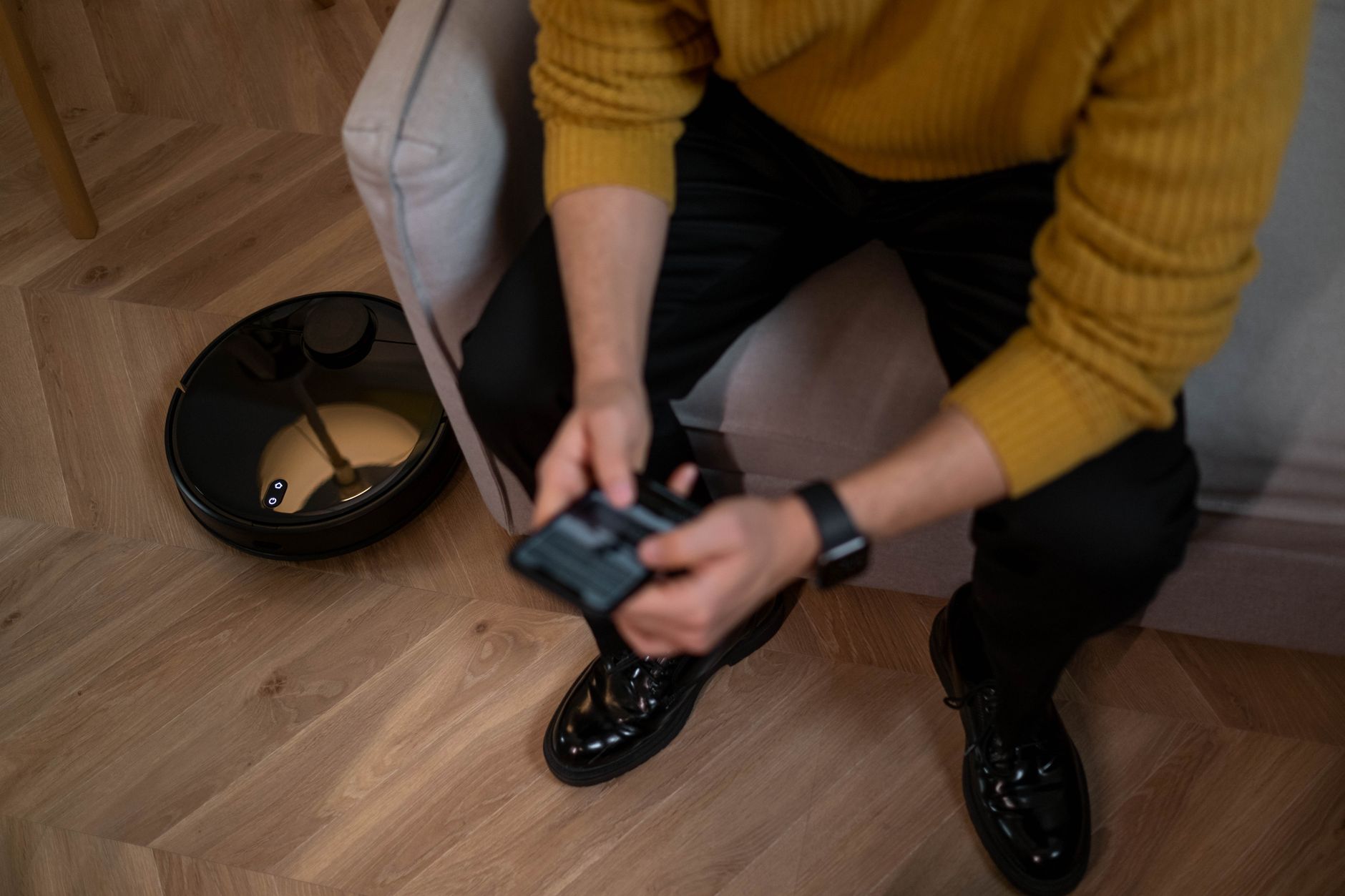

If your robot vacuum is not connecting to WiFi, the goal is simple: get the vacuum, phone, and router on the same compatible network, then let the manufacturer app finish pairing. Common causes to check include the wrong Wi-Fi band, a mistyped password, a weak signal, app permissions, or a stale network saved in the vacuum. Work through the steps below in order, and avoid skipping the reset stage.
Key takeaways:
- Check whether your model requires a 2.4 GHz network before changing router settings.
- Keep the vacuum, phone, and router close during setup.
- Use the exact Wi-Fi password and network name, including capitalization.
- If setup fails repeatedly, reset the vacuum and re-add it in the app.
- After it connects, keep firmware, app permissions, and router placement maintained.
Prerequisites and Quick Checks
Before you start, gather the vacuum, charging dock, phone, router access, and the manufacturer app. You may also need the Wi-Fi password and your router admin login if you decide to change router settings. Do not change router settings unless your vacuum manual or app specifically tells you to.
- Vacuum charged enough to complete setup. Some apps require the robot to be on the dock or powered on.
- Phone connected to the same home Wi-Fi network you want the vacuum to use.
- Bluetooth enabled if the app uses it for pairing. Check app permissions for Bluetooth, local network, and location if required.
- Router and internet service working on other devices.
- Vacuum model manual or support page open for model-specific reset steps.
- Wi-Fi network name and password ready, with exact spelling and capitalization.
Important: Check whether your model requires a 2.4 GHz Wi-Fi band. If it does, make sure your phone is connected to that band during setup, or split your router bands if your router supports separate names. If you are not sure, check the app or manual instead of guessing.
Step-by-Step: Reconnect Your Robot Vacuum to WiFi
Follow these steps in order. If one step fails, finish it before moving to the next.
- Check the basics. Confirm your home Wi-Fi is working on another device. Make sure the vacuum is powered on and not in a deep sleep or low-battery state. If the app shows an offline status, close and reopen the app.
- Place the vacuum and phone near the router. Move the robot and your phone within a short distance of the router during setup. Walls, floors, and metal objects can weaken the signal and interrupt pairing.
- Open the manufacturer app and remove the old device entry if needed. In the app, find the vacuum in your device list. If it is stuck offline or paired incorrectly, remove or delete it, then start a fresh add-device process. Do not remove it unless you are ready to reconnect it.
- Start the add-device or pairing flow. In the app, choose add device, select your vacuum model, and follow the on-screen prompts. Keep the app open and do not switch to other apps unless the setup screen tells you to.
- Enter the Wi-Fi network and password carefully. Choose the correct network name, then type the password exactly. Check for accidental spaces, capitalization errors, and similar-looking characters. If your phone offers to share the password, confirm it is sharing the right network.
- Choose the correct Wi-Fi band if asked. If your vacuum requires a 2.4 GHz network, select that network. If your router uses one combined network name for 2.4 GHz and 5 GHz, check your router app or manual for how to handle band selection, or temporarily disable the 5 GHz band if the router supports it.
- Let pairing complete. Wait while the app connects the vacuum. Do not close the app, turn off Wi-Fi, or move the vacuum during this time. If the app asks for Bluetooth pairing, approve it.
- Confirm the connection. When setup finishes, the app should show the vacuum as online. Test it with a simple command, such as starting a short cleaning cycle or checking its status. If it stays offline, continue to troubleshooting.
- Reset only if repeated attempts fail. If the app cannot find the vacuum or pairing loops, reset the Wi-Fi settings or the robot according to your model manual. A reset clears saved network information, so have your Wi-Fi password ready before you begin.
- Re-add the vacuum after reset. Once reset, repeat the add-device steps. If the reset process changed any indicator lights, wait for the expected pattern described in your manual before continuing.
Safety and Setup Cautions
- Keep liquids away from the vacuum, dock, router, and phone during setup.
- Do not open the robot, dock, or router housing. There are no user-serviceable Wi-Fi parts inside for this task, and opening them can cause damage or void support options.
- Do not change router security settings, firewall rules, or band settings unless you understand how they affect other devices. If you are unsure, contact your internet provider or router manufacturer.
- Use only the charger and dock supplied with your vacuum. Do not force connectors or use damaged cables.
- If the vacuum, dock, or power adapter is damaged, hot, or making unusual noises, unplug it and contact the manufacturer or a qualified technician.
- Keep children and pets away from the robot while it is moving or docked during setup.
Troubleshooting If It Still Will Not Connect
If your robot vacuum is still not connecting to WiFi, use the table below to isolate the most likely cause. Try one change at a time so you know what fixed it.
| Symptom | Likely check | What to try |
|---|---|---|
| App cannot find the vacuum | Bluetooth, location, or local network permission is off | Enable required permissions in phone settings, then restart the app and pairing. |
| Setup fails at Wi-Fi password step | Wrong network or password | Re-enter the exact password, check network name, and avoid auto-fill errors. |
| Vacuum sees only one network | Router band mismatch | Check whether your model requires a 2.4 GHz band. If so, connect the phone to that band and retry. |
| Connection drops during setup | Weak signal or interference | Move the vacuum, phone, and router closer together. Remove temporary obstructions if possible. |
| App says device is offline after setup | Saved network is stale or router changed | Remove the vacuum from the app, reset its Wi-Fi settings, and add it again. |
| It worked before but stopped | Router restart, password change, or firmware update | Restart the router, confirm the Wi-Fi password has not changed, and check the app for firmware updates. |
| Multiple devices struggle with Wi-Fi | Router or internet issue | Test other devices. If they also fail, troubleshoot the router or contact your internet provider before blaming the vacuum. |
Quick fixes to try in order
- Restart the phone, vacuum, and router.
- Force-close the app and reopen it.
- Toggle phone Wi-Fi off and on, then reconnect to the correct network.
- Delete the vacuum from the app and re-add it.
- Reset the vacuum Wi-Fi settings using the model-specific steps.
- Update the app and vacuum firmware if updates are available.
- Try another phone or tablet if you have one, especially if app permissions are suspect.
Maintenance to Prevent Future Wi-Fi Problems
- Keep the router in an open, central location when possible, and avoid enclosing it in cabinets or behind metal objects.
- Check the manufacturer app periodically for firmware updates. Install them only when the vacuum is docked and has enough charge.
- Review phone app permissions after operating system updates. Permission changes can break setup and control features.
- If you change your Wi-Fi name or password, reconnect the vacuum promptly using the app.
- Keep the vacuum dock and charging contacts clean according to the manual. A poor dock connection can make the vacuum appear offline.
- Label or save your Wi-Fi password so future reconnects are faster and less error-prone.
- If you replace your router, set up the new network name and password before reconnecting the vacuum, or be prepared to run the pairing steps again.
FAQ
Why does my robot vacuum only connect to 2.4 GHz Wi-Fi?
Not every robot vacuum has this requirement. If yours does, the manual or app should say so. Use the network band the manufacturer requires. If your router combines bands under one name, check the router app or manual for how to separate them or choose the correct band during setup.
Can I use my phone’s hotspot to connect the vacuum?
Some manufacturers allow a mobile hotspot during setup, but it may not be supported and can cause instability because the phone cannot always stay on the hotspot and run the app reliably. Use your normal home Wi-Fi unless the manual specifically recommends a hotspot.
How do I reset my robot vacuum’s Wi-Fi?
Reset steps vary by model. Common methods involve holding a button or button combination until you hear a tone or see a light pattern, but you should confirm the exact steps in your manual or app. Resetting Wi-Fi usually clears the saved network, so you will need to add the vacuum again.
What if the vacuum connects but shows offline later?
Check whether the router or internet was restarted, whether the Wi-Fi password changed, and whether the vacuum is on its dock. If the problem continues, remove it from the app, reset its Wi-Fi, and re-add it. Also confirm the app has the permissions it needs on your phone.
Do I need to change my router settings?
Only if your vacuum manual or app tells you to. Most connection issues are solved by correcting the network choice, password, signal, app permissions, or saved pairing. If you are not comfortable changing router settings, contact your router manufacturer or internet provider for help.
Will a robot vacuum work without Wi-Fi?
Offline behavior varies by model. Check your model manual for what works without Wi-Fi. App control, schedules, maps, and voice assistant features usually require a Wi-Fi connection.